Open in the browser. Add to your home screen.
InstallX is a web app that can be added to a phone’s home screen. Sign in with the account your team provides to open the installer workspace.
Built for sign & print teams
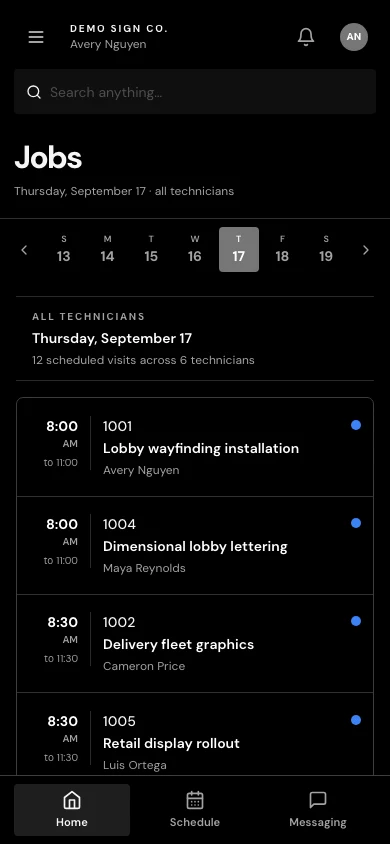
Open the day’s schedule, find the person on site, and capture the finished installation from your phone. InstallX gives sign and print crews a field workspace connected to the office.
Preparing for early access. Join the interest list to hear when access opens.
How it works
The office plans the work. The field workspace puts the schedule, customer, installation site, and work instructions in reach while you carry it out.
Review your assigned schedule, open the job sheet, and check the site address, instructions, and files. Open the job while connected before heading somewhere with poor reception. Directions are available from the job’s saved location.
Find the customer, order contact, and on-site contact separately. Call, text, or email from the job sheet when the office has provided those details. Update your progress so the office can follow the work as changes sync.
Take completion photos, work through the job checklist, and leave notes with the installation. Collect a customer signature when that feature is enabled and the job requires it. If work is unfinished, record the reason another visit is needed.
Example · retail graphics installation
The address is right, but you need someone to open the delivery entrance. The person who ordered the graphics is not the person at the store.
Open the job’s Site section and use the on-site contact. Review the installation instructions, then add photos and update your progress as the work moves forward.
The contact details and the installation record stay with the job. The office can follow synced progress, and completion photos remain available for review.
InstallX is a web app that can be added to a phone’s home screen. Sign in with the account your team provides to open the installer workspace.
Previously loaded work can remain available, and supported field updates can queue on the device. The app shows connection and sync status so you can see what is still waiting to reach the office.
Capture job photos without downscaling the original, and keep notes attached to the work. Pending uploads stay on the device until they can sync. Files and drawings still need an internet connection.
A few practical answers
No. Open InstallX in the phone’s browser and add it to the home screen if you want an app shortcut. Your team provides the account and sets the access available to your role.
Previously loaded work can remain available. Supported progress updates, notes, checklist changes, photos, clock punches, messages, and signatures can queue for syncing. Open the job while connected beforehand, check the pending status, and reconnect to complete syncing. Files and drawings still need an internet connection.
Yes. The field job sheet distinguishes the customer, order contact, and on-site contact. Call, text, and email actions appear when the relevant details are available.
Yes. Installers can capture job photos. Customer signatures are optional and depend on company settings and the job’s requirements; when used, the sign-off record stays attached to the work.
See it in context
Get started
Tell us about your team. We’ll contact you when access opens.