Installation management. From the office to the job site.
Plan the work on desktop. Give the crew the schedule, site details, and contacts they need on their phones. Keep updates and completion photos with the job.
Actual InstallX screens, shown with demonstration jobs.
Schedule assets against an installer’s visit and see them on dedicated dispatch rows. Overlap checks help prevent the same equipment being booked twice.
Custom job numbering
Job numbers that fit your operation.
Click to flipTap to flip
Custom job numbering
Configure company job numbering and see the reserved number before saving a new job. Related child jobs retain their connection to the parent project.
Workday clock
Clock in and out from the field.
Click to flipTap to flip
Workday clock
Enable workday punches independently of job timers and choose who participates. Supported offline punches retain the time they were made.
Custom roles & permissions
Give each person the access their work needs.
Click to flipTap to flip
Custom roles & permissions
Define company roles and assign capabilities to office, field, and administrative users. Location access further controls which branch’s work they can use.
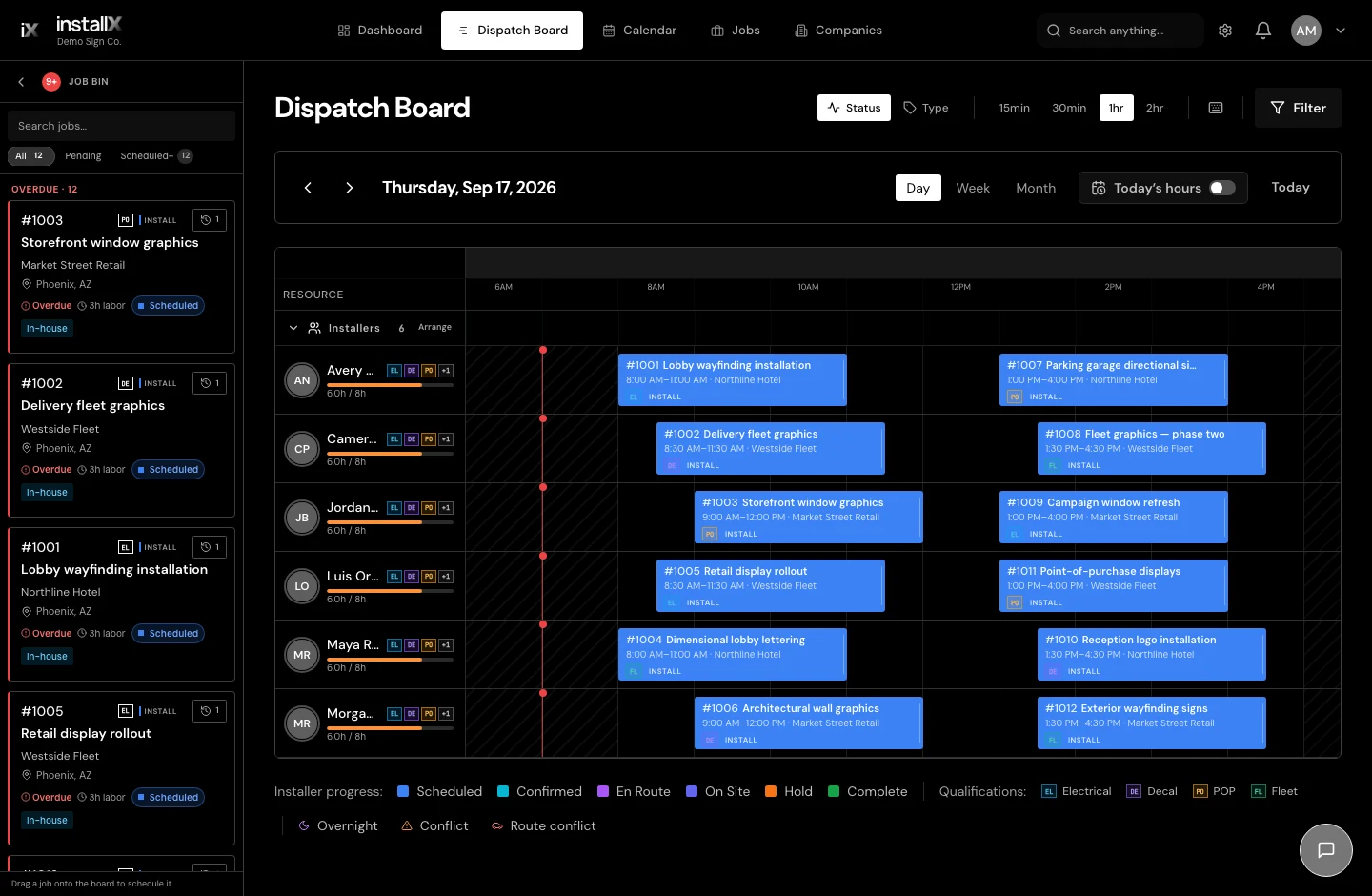
Drag-and-drop dispatch
See the day. Move the work.
Click to flipTap to flip
Drag-and-drop dispatch
Schedule and adjust installation time blocks on a visual crew timeline. Open job details from the board and review conflicts as plans change.
Projects & child jobs
One project. Every related installation.
Click to flipTap to flip
Projects & child jobs
Group individual jobs under a parent project while keeping each job’s crew, schedule, files, and progress distinct.
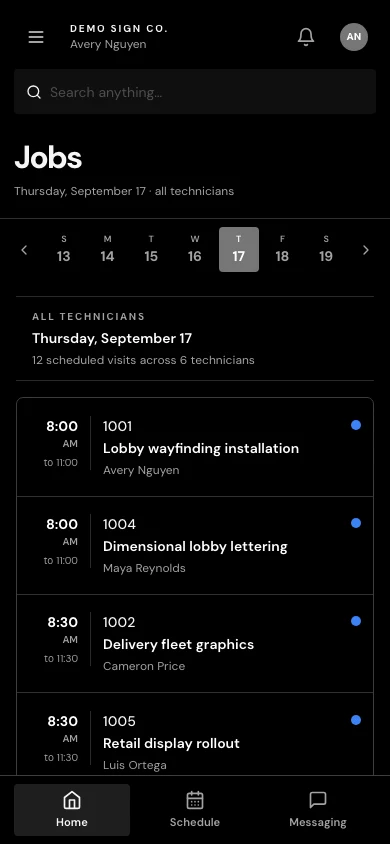
Mobile installer workspace
The day’s jobs, right in your pocket.
Click to flipTap to flip
Mobile installer workspace
Install the web app on a phone for a field workspace with schedules, job sheets, crew visibility, history, and search.
Customer & subcontractor directory
Keep the companies behind the work organized.
Click to flipTap to flip
Customer & subcontractor directory
Maintain customer and subcontractor records used across jobs and planning. Archive companies with history instead of losing their connection to past work.
Real-time updates
Keep the office and field working from current information.
Click to flipTap to flip
Real-time updates
Connected screens receive change signals and refresh the affected records. Reconnection brings views back up to date after an interruption.
Insurance certificate tracking
See whether a subcontractor’s COI is current.
Click to flipTap to flip
Insurance certificate tracking
Track certificates and expiration dates, with optional warnings or assignment blocks for missing or expired coverage. Keep the document history together.
Offline field work
Keep essential work moving through a dead zone.
Click to flipTap to flip
Offline field work
View previously loaded work and queue supported progress updates, notes, checklist changes, photos, clock punches, messages, and signatures. Pending changes sync when a connection returns.
Quick job previews
Get the essentials without leaving the list.
Click to flipTap to flip
Quick job previews
Expand a job in the directory for a quick look at its details. Open the full job whenever you need the complete workspace.
Shared calendar
In-house and subcontract work in one view.
Click to flipTap to flip
Shared calendar
Review scheduled crew work and subcontract visits together, with separate visual treatment and filters for the kinds of work you want to see.
Flexible sign-off requirements
Require a signature only when the work calls for it.
Click to flipTap to flip
Flexible sign-off requirements
Set a company default, a customer preference, or a requirement on an individual job. The office can manage exceptions with a recorded reason.
Internal team messaging
Talk to the people doing the work.
Click to flipTap to flip
Internal team messaging
Use private people-based conversations on desktop and mobile, with unread indicators and supported offline sending in the field app.
Subcontract visit planning
Plan outside work without inventing an internal crew.
Click to flipTap to flip
Subcontract visit planning
Arrange subcontract visits with date ranges and optional exact times. The planner separates work missing a window, ready-to-plan jobs, and planned visits.
Live crew progress
Know when work is moving, paused, or finished.
Click to flipTap to flip
Live crew progress
Installers update their assigned progress from the job. The office can see changes such as En Route, On Site, Hold, and Complete as they sync.
Job search & filters
Find the work you need in a busy operation.
Click to flipTap to flip
Job search & filters
Search the job directory and narrow it by customer, installer, subcontractor, status, fulfillment, and scheduling details. Switch between list and card views.
Does it work for our own crews and subcontractors?
Yes. Plan in-house installation work and coordinate subcontract work in the same system. Keep job scope, schedules, documents, and updates tied to the work they belong to. Explore subcontractor coordination
What does the installer see on a phone?
A field workspace with their schedule, job location, customer and site contacts, work instructions, and photos. Installers can update progress from the job site so the office can follow the work.
Can we start using InstallX today?
We’re preparing for early access. Leave your name, work email, and company on the interest list, and we’ll contact you when access opens. This does not create an account or start a subscription.